I'm getting the error "Please check your internet connection and try again" but I am connected to the internet. What do I do?
If you're seeing this error message despite having an active internet connection, there are two common causes. Try both fixes below.
Fix 1: Enable TLS 1.2
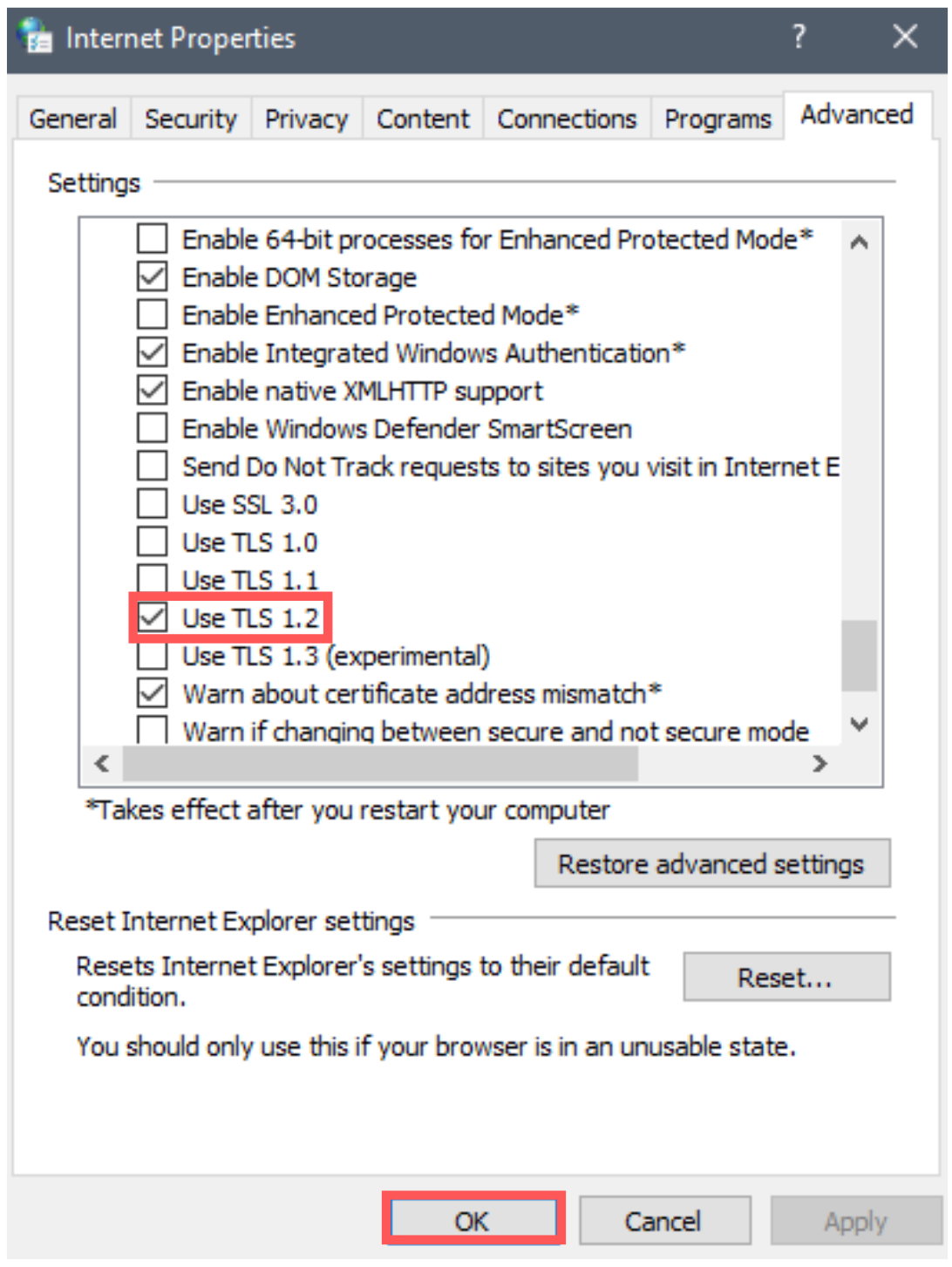
Make sure you have selected TLS 1.2 under your machine's internet options:
Control Panel > Network & Internet > Internet Options/Properties
Under the "Advanced" tab, select the "TLS 1.2" check box and click OK.
Fix 2: Allow Immerse through your Windows firewall
It's possible your Windows firewall is blocking the connection. See the article "How to allow Immerse through Windows firewall?" in this Troubleshooting section for step-by-step instructions.
Related Articles
I can not set up the output device, I get the error “Could not open the Output Device”?
Please try the following: Close any applications that might be capturing your systems audio chain such as media players, youtube, chrome, etc. Then close and restart Immerse. (Make sure you close it from the system tray). Make sure that your system ...How to record Immerse audio using Audacity?
If you face a sound-related issue, we request you to audio record and share that with us. You can use any recording tool; we are sharing how you can use Audacity for audio recording. If you don't have Audacity, please download Audacity. 1. For the ...How to allow Immerse through Windows firewall?
Adding Inbound Rule: 1. From the start menu -> go to Windows Defender Firewall 2. Click on: Allow an app or feature through Windows firewall. 3. Click on “Change settings” on the right top. 4. Click on “Allow another app”: 5. Click on Browse. 6. ...I am not able to capture my selfie picture correctly.
Please follow these steps: Bring the selfie camera close to your face so that your face fills the screen. Look left so that your right ear gets exposed to the camera. Then look to to the left, following the prompts. Make sure that nothing blocks your ...I'm having installation or uninstallation problems with Immerse. What do I do?
My installation was interrupted and I can't run the Immerse application Try uninstalling the driver using the uninstall option, then install it again. If the uninstaller doesn't prompt you to uninstall the driver, you may need to uninstall it ...