FFXIV | Setup SoundBlaster Audio Cards
How to set up Immerse Gamepack | FFXIV with SoundBlaster cards using Sound Blaster Command Software?
Immerse Gamepack works very nicely with both Internal and External sound cards. However, it is important to avoid running multiple spatial audio and surround sound solutions at the same time, as they will conflict with each other.
AE family of SoundBlaster sound cards (including AE-7 and AE-9) come with specific software, called Sound Blaster Command, which provides multiple configuration options. In this software, there are some settings that need to be configured when using Immerse Gamepack. We recommend doing this before launching FFXIV; otherwise, you may need to restart your game in order for the changes to take effect.
Configure the soundcard for headphones
Please note that all the settings above can also be disabled at once (including any EQ or audio processing) by setting the Direct Mode ON, in the Playback menu:
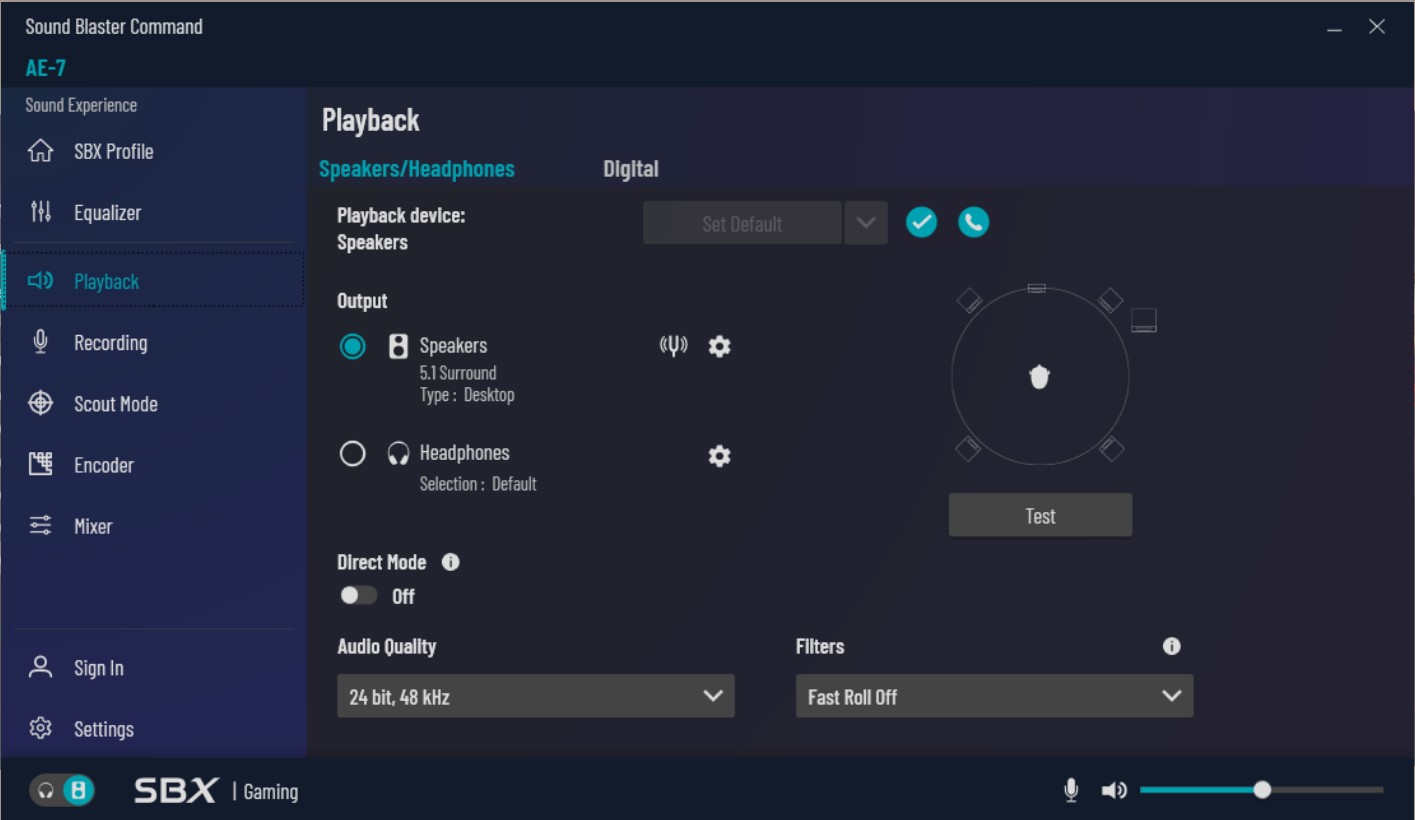 With all these settings turned off, and headphones selected, you are ready to listen to FFXIV with Immerse Gamepack personalized Spatial Audio!
How to set up Immerse Gamepack | FFXIV with SoundBlaster cards using BlasterX Acoustic Engine Pro?
Immerse Gamepack works very nicely with both Internal and External sound cards. However, it is important to avoid running multiple spatial audio and surround sound solutions at the same time, as they will conflict with each other.
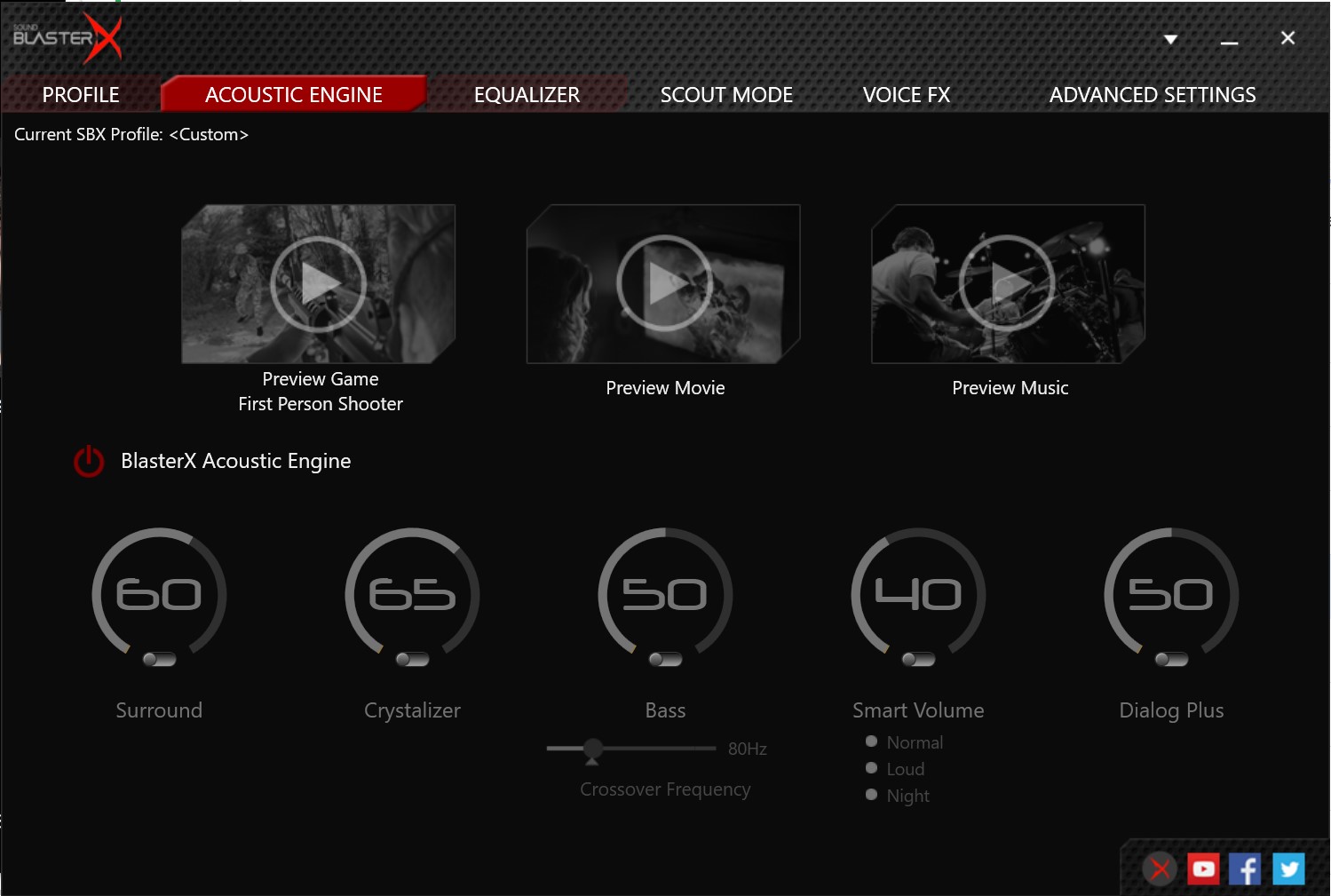
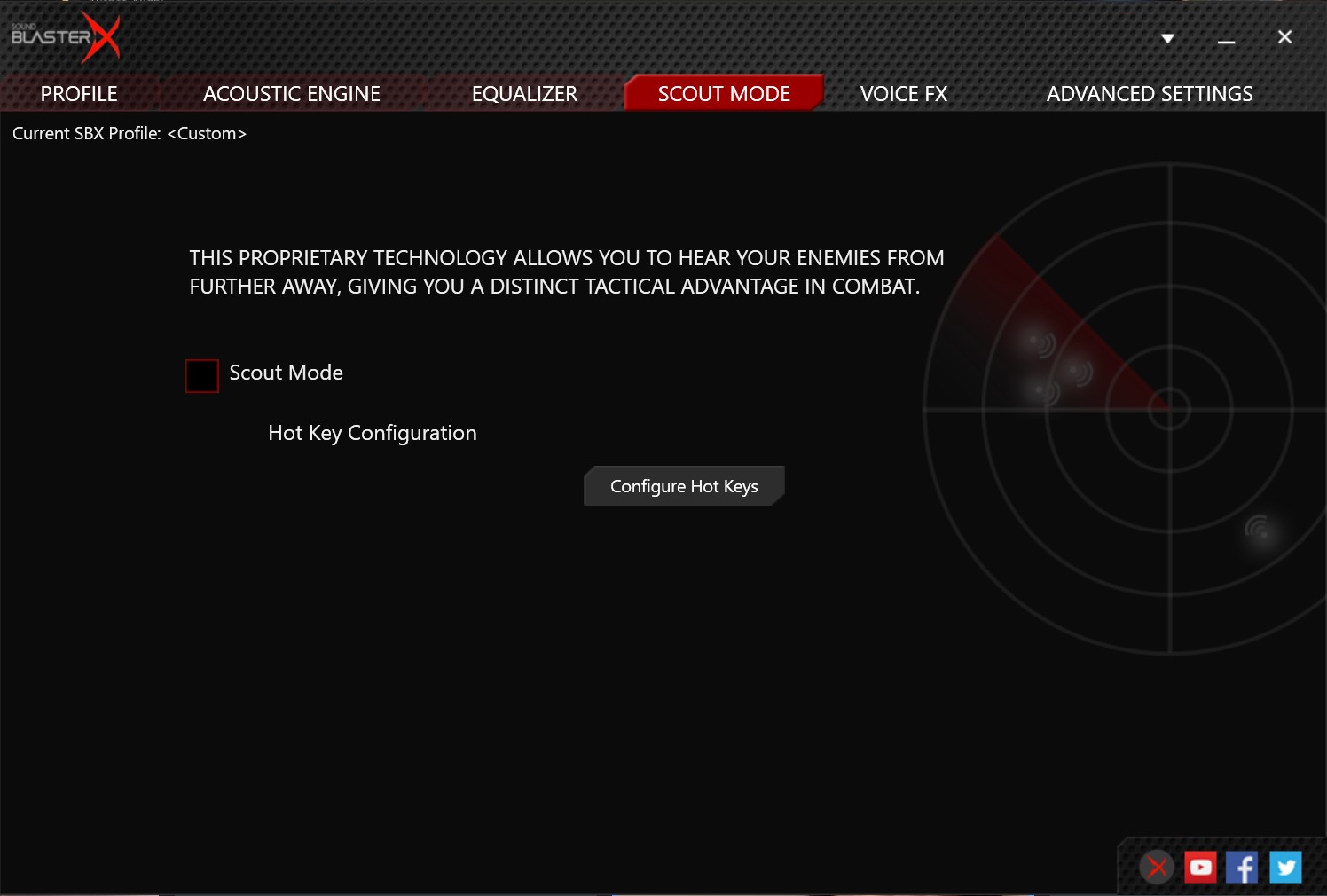
SoundBlaster sound cards including G6 and X3, have 2 settings that must be disabled when using Immerse Gamepack. We recommend doing this before launching FFXIV, otherwise, you will need to restart your game in order for the changes to take effect.
Disable Surround Sound