FFXIV | Using Your Profile on Multiple Devices
How to Install Immerse Gamepack FINAL FANTASY XIV edition app on my 2nd machine? Will I lose my profile?
You can download and activate Immerse Gamepack app on up to 5 devices. It is recommended to find your license code first before installing it on your other machine.
After installing, launch the Immerse Gamepack app, click on 'I have a license code,' and enter the license code. Click on "Activate License." It will automatically download your HRTF profile to your 2nd machine.
Note: For the trial or purchased account, you can find the license code in your email. It is suggested to save your license code in a safe place.

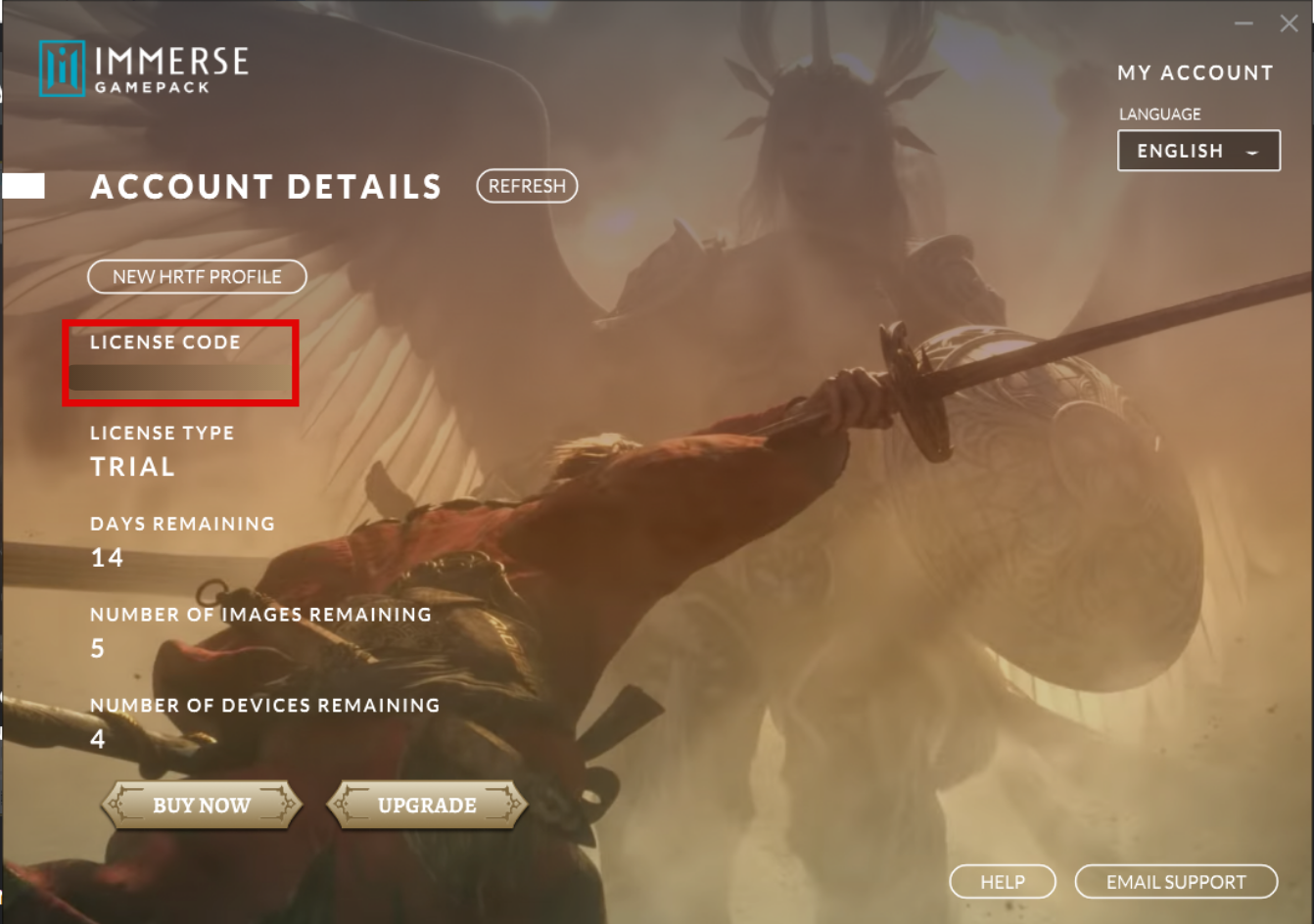
You can find your license code anytime by opening the Immerse Gamepack application and viewing your license code.
What is device management on Immerse Gamepack FINAL FANTASY XIV Edition?
We have added a new feature for device management. Now you can remove/delete the unwanted device and rename it. Removing unwanted devices from Immerse Gamepack app device list is a simple process that helps streamline your device count and keep your interface organized. By following the step-by-step instructions outlined in this article, you can easily remove devices that are no longer relevant or needed. Please follow the below steps:
Step 1: Launch Immerse Gamepack app: Please launch Immerse Gamepack application and go to the product's 'My account' page. Look for the option 'Manage Devices.' Select that, and it will show you the 'Current Device' ID, and a drop-down for 'Choose Device.' You can select the device to rename or remove from the drop-down.
Step 2: Identify Unwanted Devices and Remove them: Review the list of connected devices and identify the ones you wish to remove. Unwanted devices may include old, inactive devices and devices you no longer use. Please be sure to select the device you want to remove from the drop-down list, then click on remove.
Step 3: Confirm Removal: After selecting the remove option, the application may prompt you to confirm the action. This confirmation step ensures that you do not accidentally remove a device. Carefully review and confirm the removal.
Step 4: Repeat as Needed: Continue the process for each unwanted device in your list. Take your time to carefully remove only the devices you no longer require.
Note: You will receive an error message if you attempt to remove the current in-use device.
You are allowed a maximum number of 5 devices and devices that you have removed count towards that limit. If you run out of devices reach out to embody.co/help and we will increase your device limit.
How to edit the device name?
Now you can remove or rename your devices on Immerse Gamepack app. Please follow the below steps to rename your device:
To do that, please launch Immerse Gamepack FINAL FANTASY XIV Edition App and go to My account--> Manage Device.
Choose the device from the drop-down list you want to change the name. Write the word you wish to change to and click on "Rename Device." You have now successfully changed the name of your selected device.
What does reset other devices mean?
Now we have options to remove/delete unwanted devices from the list. You can reset it at once by clicking on the option 'Reset Other Devices' under My Account --> Manage Device. This will remove all previously used devices except the current in-use one.