How to find the sample rate of my output device?
To find the sample rate of output device on Windows:
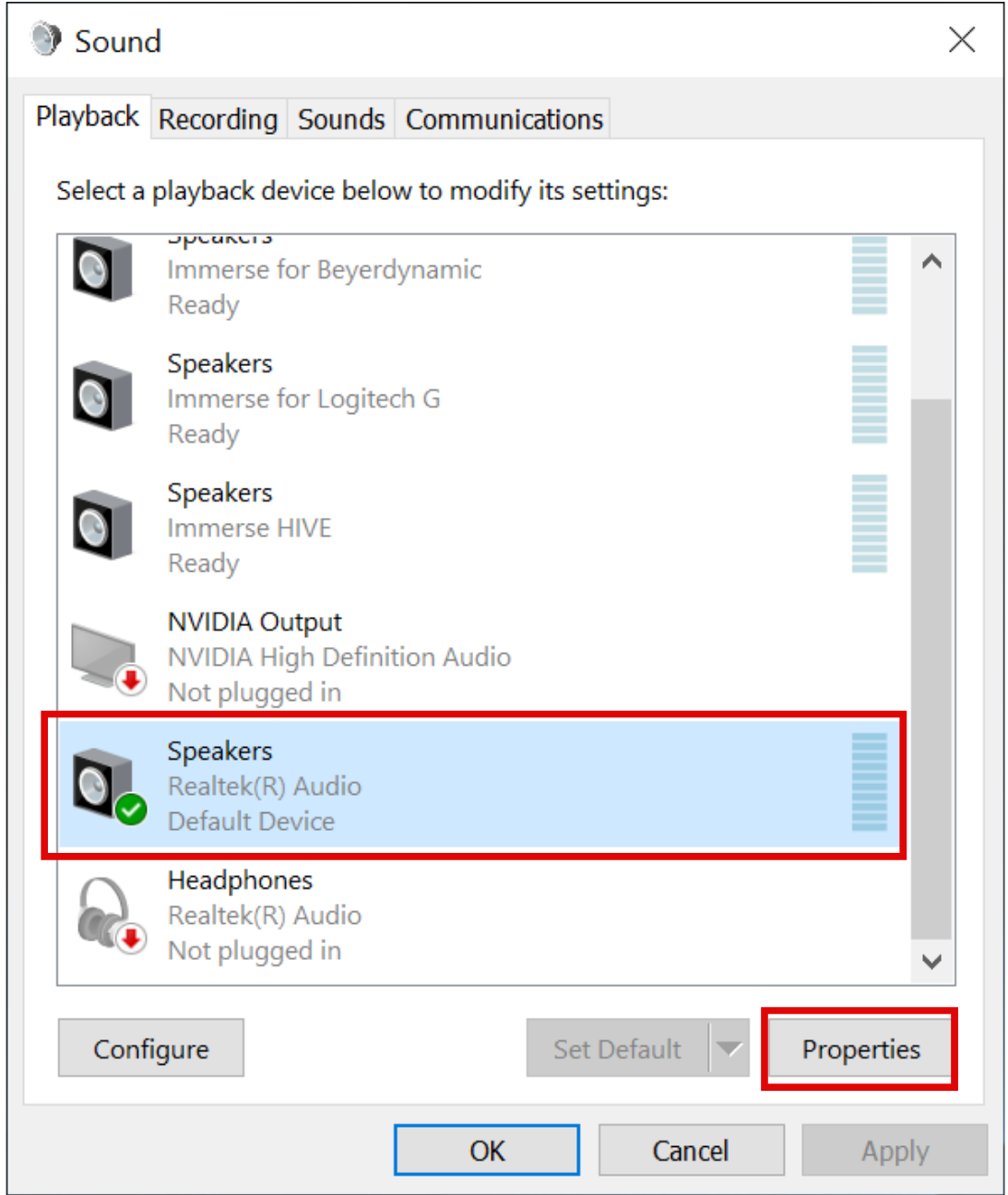
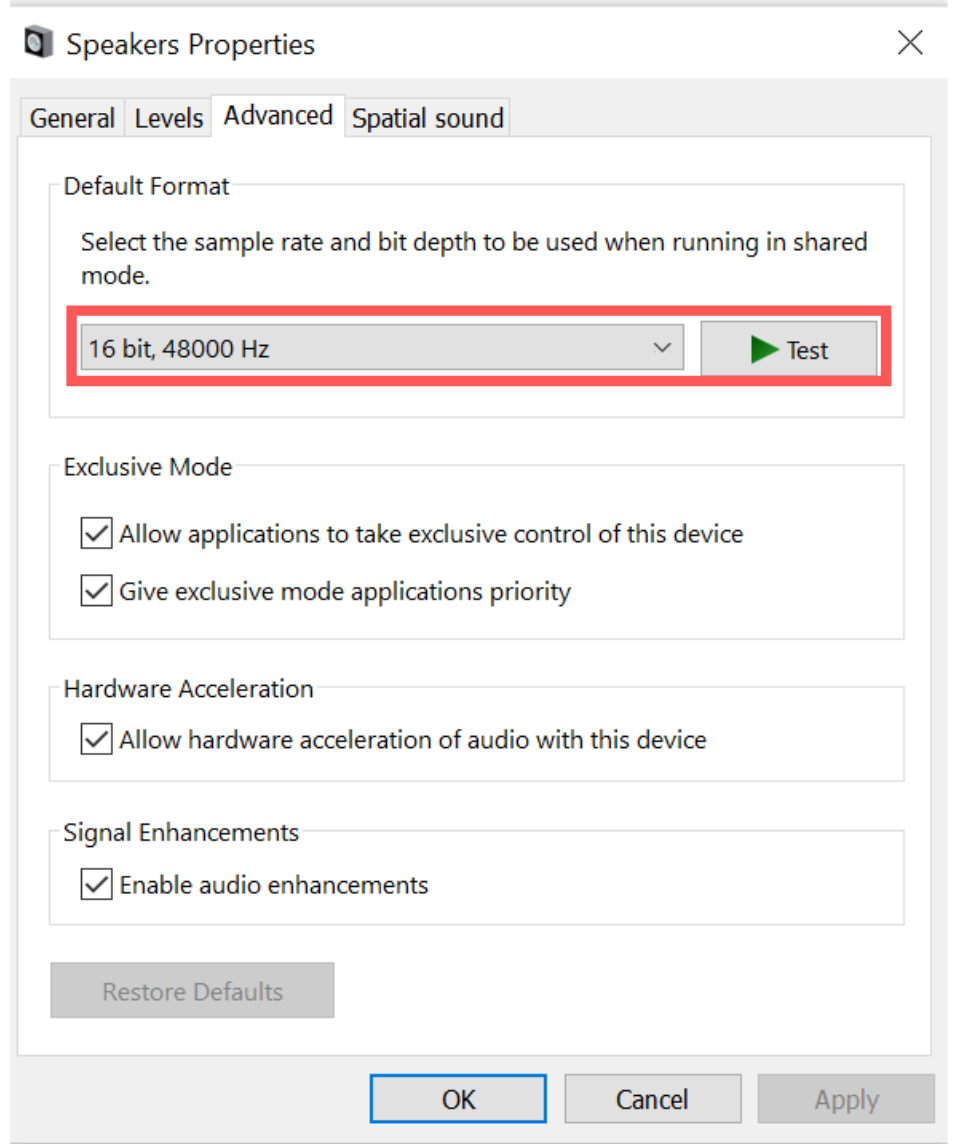
Go to: Sound Settings -> Sound Control Panel -> Select the output device and click on the ‘Properties’ -> ‘Advanced’ tab, and you can find the sample rate.
Please make sure you have selected the same 'Output Device' on the 'Playback' tab as you have selected on Immerse 'Output Device.'
Related Articles
I can not set up the output device, I get the error “Could not open the Output Device”?
Please try the following: Close any applications that might be capturing your systems audio chain such as media players, youtube, chrome, etc. Then close and restart Immerse. (Make sure you close it from the system tray). Make sure that your system ...I am experiencing muffled, distorted, or otherwise peculiar sound with Immerse.
If you are experiencing muffled, distorted, or otherwise peculiar sound with Immerse, it is likely that you have other 3D audio processing running in the background. It is important to disable any other spatial audio or surround sound solutions when ...How to record Immerse audio using Audacity?
If you face a sound-related issue, we request you to audio record and share that with us. You can use any recording tool; we are sharing how you can use Audacity for audio recording. If you don't have Audacity, please download Audacity. 1. For the ...What product lines does Immerse have?
Embody has 3 product lines: Immerse | Hive: Compatible with all PC games and headsets. Immerse Gamepack: is a fully integrated personalized spatial audio experience inside Call of Duty, Final Fantasy XIV, Sea of Thieves, as well as Gamepacks for ...